Experimental Features
This section will describe the following experimental features that have been integrated with the ifw-templates:
removal of consul and usage of nomad namespace and service registry
integration with an example secondary loop manager implementation (to know more about SLM, see the ifw-slm documentation)
creation of an Instrument Package (to know more about the IP tool, see the ifw-iptool documentation)
Nomad namespace and service registry
In IFW 2026, the template instrument moved to Nomad’s internal service registry combined with namespaces for service isolation, providing an alternative to the traditional Consul-based approach.
When using this approach, each instrument operates within its own Nomad namespace (e.g. MICADO),
specified via the NOMAD_NAMESPACE environment variable. Service discovery is performed through Nomad
itself, configured by setting NOMAD_SERVICE_REGISTRATION=nomad.
This approach is optional. Instruments can continue using Consul for service discovery by setting
CONSUL_HTTP_ADDR in their environment and omitting NOMAD_NAMESPACE and NOMAD_SERVICE_REGISTRATION.
But the value for the project_name passed to cookiecutter is internally used for defining the namespace.
Therefore, if you do not want to use NOMAD_NAMESPACE and NOMAD_SERVICE_REGISTRATION, you must modify the way the ifw-template project is created.
To verify job status when using namespaces:
nomad job status -namespace micado
Note
If you handle only one namespace and you have the environment variable NOMAD_NAMESPACE defined, you can omit the option “-namespace”
Integration with a secondary loop manager
The example project template includes the implementation of a secondary loop manager that offers two loops:
Loop1 to move the motor to specified positions and with a specified velocity
Loop2 to count up to the configured max_count, sleeping step_delay_ms between each count
For both loops, once they are closed, the corresponding values in the OLDB are updated after every cycle.
The supervisor manages the secondary loop manager, but the integration in the ifw-templates is not completed. To actually start the SLM and close the loops, we need to open the slmGui or use the slmcli.
For the same reason, the namespace (micado in the example) has to be passsed explicitly.
This is a simple procedure:
make sure to have run the startup script
run the MICADO_OB_sample.json (or make sure to have the fcfGui at hand)
start the SLM GUI with this command:
slmGui --name mcdslm-req --namespace micado --config config/mcdslm/config.yaml
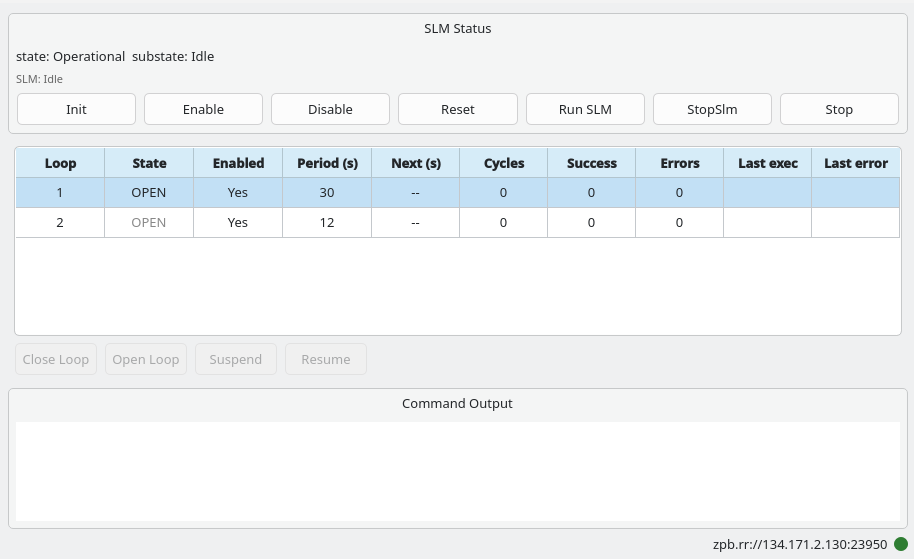
run the slm pressing the button
Run SLM. At this point, the buttons to open/close/suspend and resume loops become available.choose the loop 1 and close the loop. You can monitor what happens using the motor gui.
from the fcfGui:
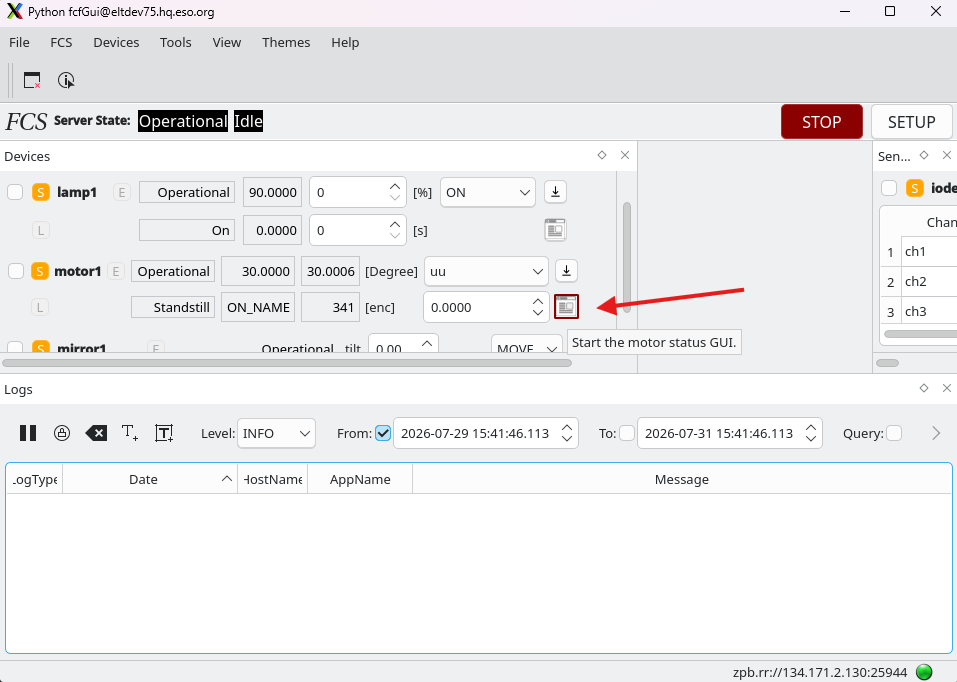
start the motor status gui:
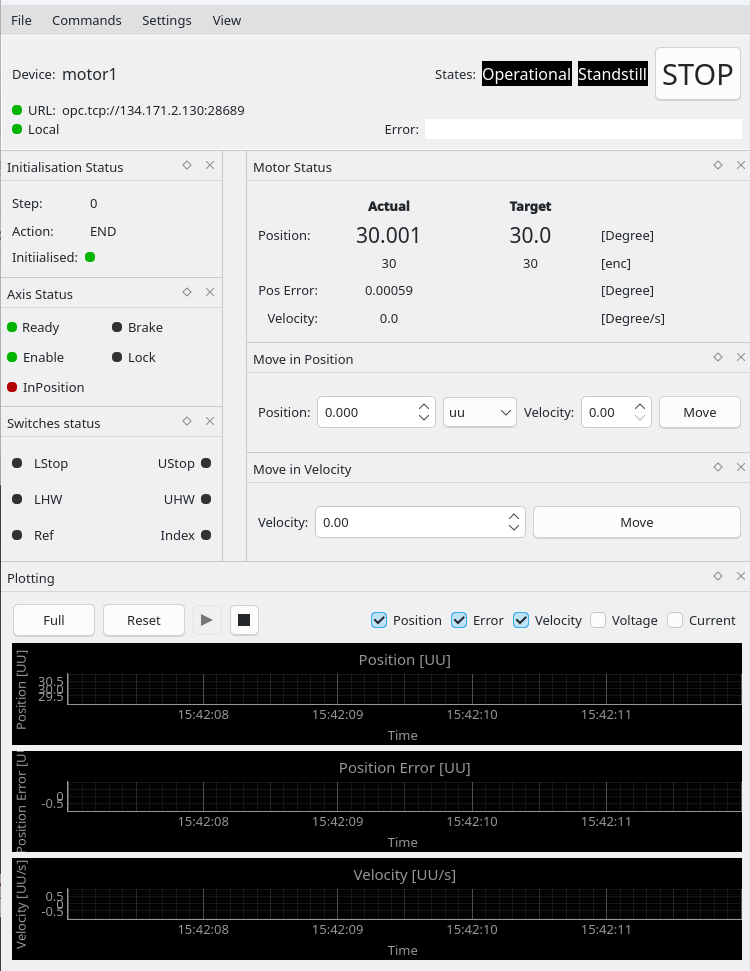
You should see that the motor moves to the positions defined in the $INTROOT/resource/config/mcdslm/config.yaml file.
You can close the second loop as well and check how the values in the OLDB are updated (using oldbGui, for example).
Known Problems
The motor velocity set in the slm configuration file is not really taken into account. The implementation will be fixed in the next release.
The cycle counting is a bit flawed.
Creation of an Instrument Package
We suppose that the mcd-ipt has been built and installed and the user got acquainted with the new package ifw-iptool and its documentation.
The user should be familiar with the sequencer and its documentation.
The generated Instrument Package is installed under $INTROOT/resource/ip/MICADO
This is the ip that will eventually be delivered to the Observation Preparation Tool.
Together with the ip, also example obs are generated and installed under $INTROOT/resource/obd/micado/stubs
These example files can be loaded in the sequencer and can be used as a starting point for the preparation of real observation blocks.
To make use of this simple ip start “tino”, the OTTO simulator (see the sequencer documentation), pointing to the location where the example OBDs are installed:
> seqtool tino $INTROOT/resource/obd/micado/stubs
Run the seqtool gui passing the delivered configuration file:
> seqtool gui --config config/seqgui_config.yaml
Note
Since IFW version 2024, you need to specify the GUI configuration to enable the support of Instrument Package (IP).
Note
Since IFW26, the sequencer uses an IP validator to check the format of the OBs.
In the sequencer GUI, the menu Otto should be available.
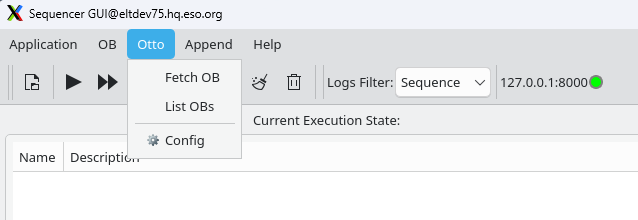
Choose List OBs . You should see the list of available OBs:
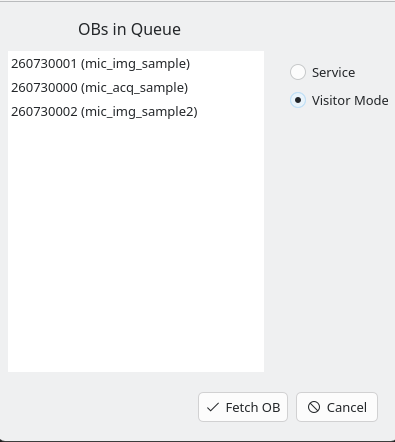
You can now choose one OB and run it in the sequencer (provided you already started all needed processes).
If you use the Fetch OB button, the sequencer will choose one OB, following the numerical order given by the OB IDs,
as indicated in the figure above.
Note
These OBs refer to python stubs generated by iptool as example. They could be linked to the python code used with ifw-templates editing the module name .
For example, for mcd_acq_sample.obd.json, change line 53 from:
"moduleName": "micado.stubs.mcd_acq_sample"
to:
"moduleName": "mcdseq.mcd_acq_sample"
And, analogously, do the same in the $INTROOT/resource/ip/MICADO/ip/app/library.cfg file.
Do the same for all OBs. Now the OBs can be run and they will start the GUIs and run an acquisition, the same way it is done with
micado/mcd-resource/obd/tec/MICADO_OB_sample.json
Warning
After changing scripts and/or library.cfg files, the tino process and the sequencer should be restarted.