Cryogenic application requires sequences for certain procedures (i.e. Evacuation). These sequences
can be represented with a subset of flowchart Blocks: Process,
Decision and Terminator. Cryo HMI Framework Controls implements this subset and joins them
all together with a specialized Sequence Container that actually
interfaces with the PLC code.
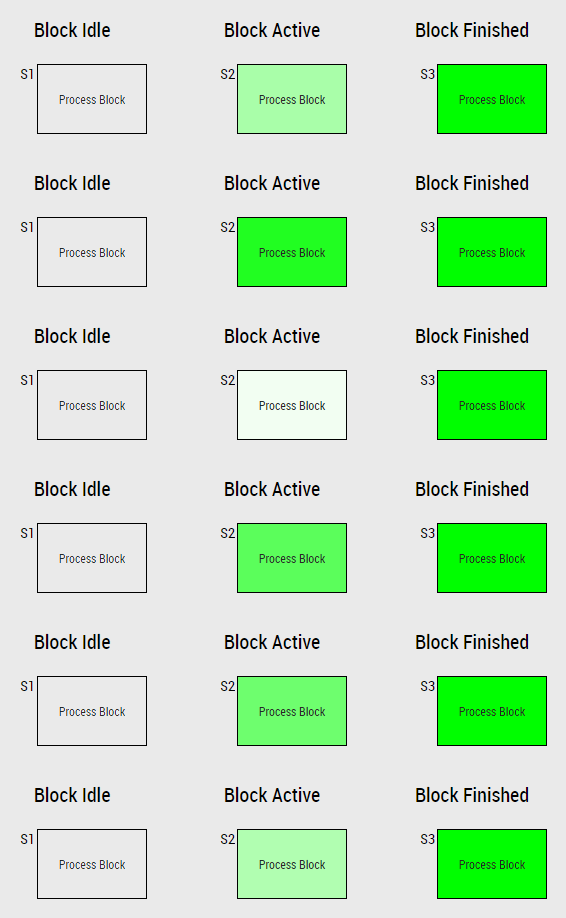
Blocks are very simple controls with no important processing code inside of them. There are 3 blocks
implemented, they all have the same interface, but their symbol and meaning are different:
Process: Also called activity. Once finished it goes to the next step.
Decision: Conditional operation that determines which one of the two paths the sequence will
take.
Terminator: Indicates the beginning and ending of a sequence.
String or Value that it’s being shown inside the block symbol.
BlockId
Common
Unique number that represents the ID of this block, no other block should have the
same value. The number is shown on the upper left side of the Framework Control as S<BlockId>.
State
Common
INT value that represents the state of the device: Idle (0), Active (1) and
Finished (2).
As the name suggests, Sequence Container Framework Control inherits the
TE2000 Container
capabilities.
As a plain container, it can group any child control. All child controls added are defined
relative to the position of the container.
Sequence Containers also allow the user to interface with the PLC sequence by using a custom
json-schema named Sequence Object . Check
Sequence Container Interface for more information.
Note
There is a function block in CryoLib FB_CRYO_HMI_SEQUENCE that can interface directly
with Sequence Container, but this is not covered in this manual.
The container will accept any type of control inside of it, but will only interact with Process,
Decision and Terminator and only if they are direct childs of the container. Please check
the section Example for more information.
Every time the container gets an update of arSequence and bIsFinished, the following procedure is
called:
## WARNING This is just a small representation of the actual code.## sequenceBlocks is a dictionary of blocks with block_id as keydefSequenceUpdated(self,ar_sequence:List,is_finished:bool):## All elements of sequence_blocks are put to Idle stateforblock_idinself.sequence_blocks:self.sequence_blocks[block_id].setState(State.IDLE)## Take last value, which corresponds to the current processed blocklast_value=ar_sequence.pop()ifis_finished:self.sequence_blocks[last_value].setState(State.FINISHED)else:self.sequence_blocks[last_value].setState(State.ACTIVE)## Put all other valid blocks from the sequence array as Finishedforblock_idinar_sequence:ifblock_idinself.sequence_blocks:self.sequence_blocks[block_id].setState(State.FINISHED)elifblock_id>0:## Error logged to browser consoleerror("SequenceID "+block_id+"not present in HMI sequence!")
Now that the sequence done, we will modify its Sequence attribute to see how it affects it.
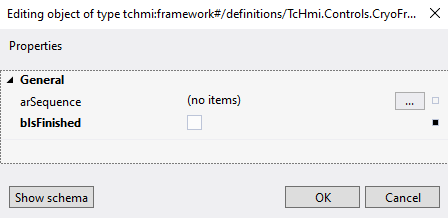
With the sequence container selected, click the attribute Common → Sequence three
doted box [...].
A new box will appear, select bIsFinished and then deselect it (this is to avoid an error)
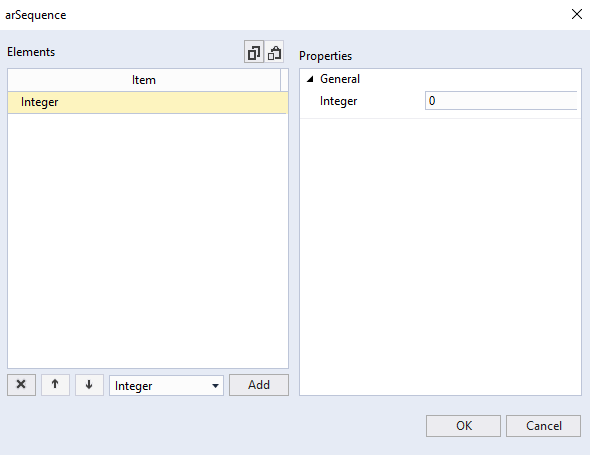
Then press on the three doted box [...] on arSequence and a new menu will appear.
This menu is to edit arSequence array. Press Add button and a new value will appear, make sure
the value is 0.
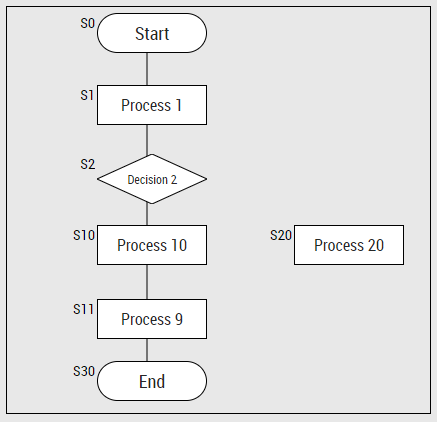
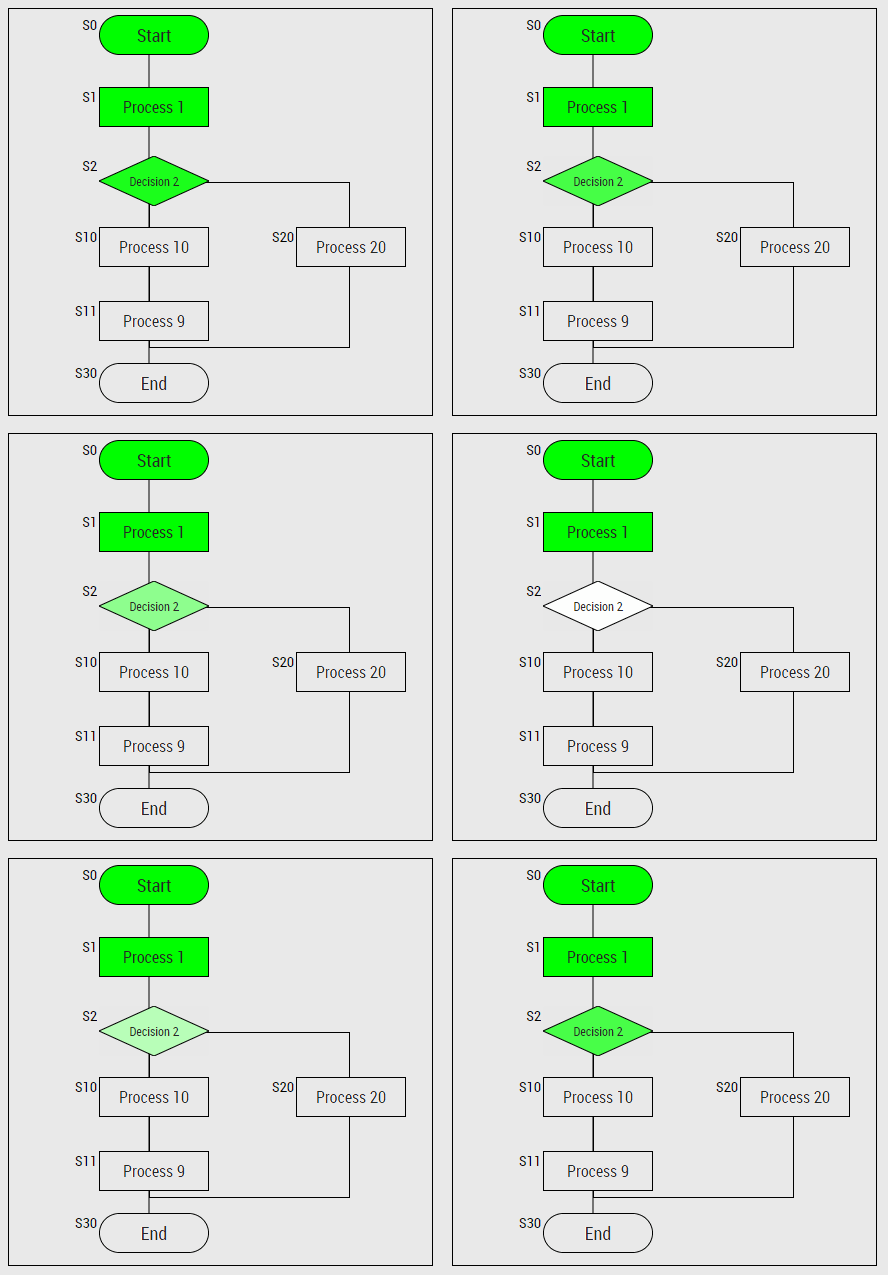
Close both modal windows and you should see how it affects the block with BlockId = 0. The block
will blink between white and green colors signaling the user that this is the current step in the
sequence.
Figure inside red box with dashed outline is blinking
Repeat step 3, 4 and 6. But this time add [1,2] to the array. Make sure 2 is the last value of
the array (at the end).
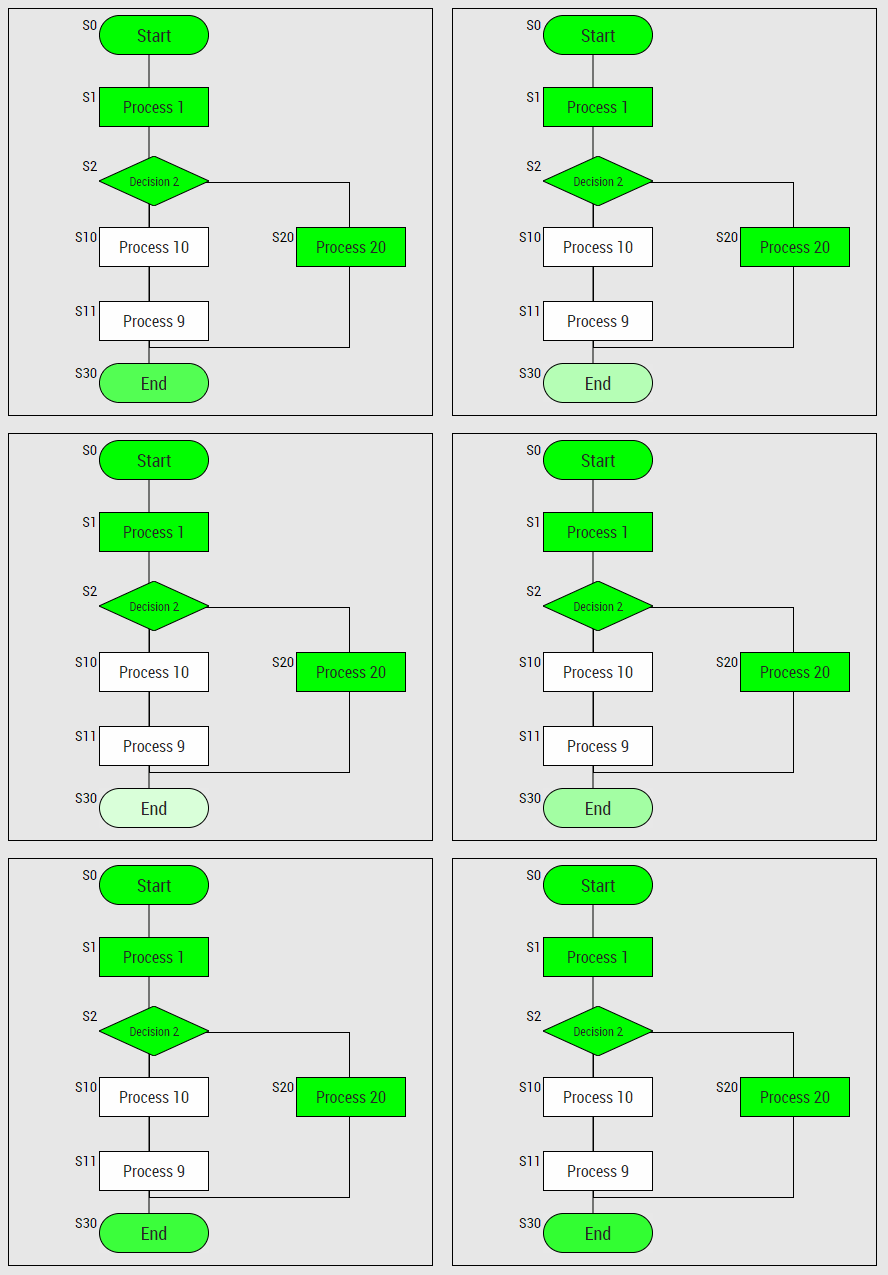
Repeat step 3, 4 and 6. But this time add [10,30] to the array. Make sure 30 is the last value
of the array (at the end). Notice how the blinking block is always the last one on the list,
in this case, Block 30
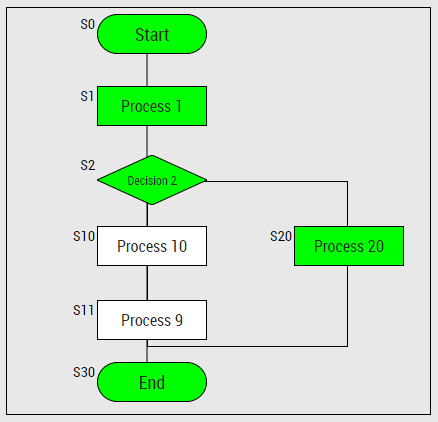
Open again the Sequence Object (as Step 1), this time, only check the value bIsFinished. Now
Block S30 will stop blinking
This concludes the example, this should clear more or less how Sequences work.
As shown in the example, Sequence Blocks and Container are only a meant to show the
state of a Sequence of a PLC. No logic is present to make sure that the data is consistent, so
if an error like this appear could mean that the PLC sequence is wrong, or the BlockId
between the PLC and the HMI seuquence are not correctly aligned.