10. ccfGui Design Decisions
This chapter documents the core design decisions and architectural patterns used in ccfGui, the reference application built with the IFW Widget Library. ccfGui demonstrates how all the library components – communication facades, widgets, utilities, and styles – are wired together into a complete CCF based system control panel.
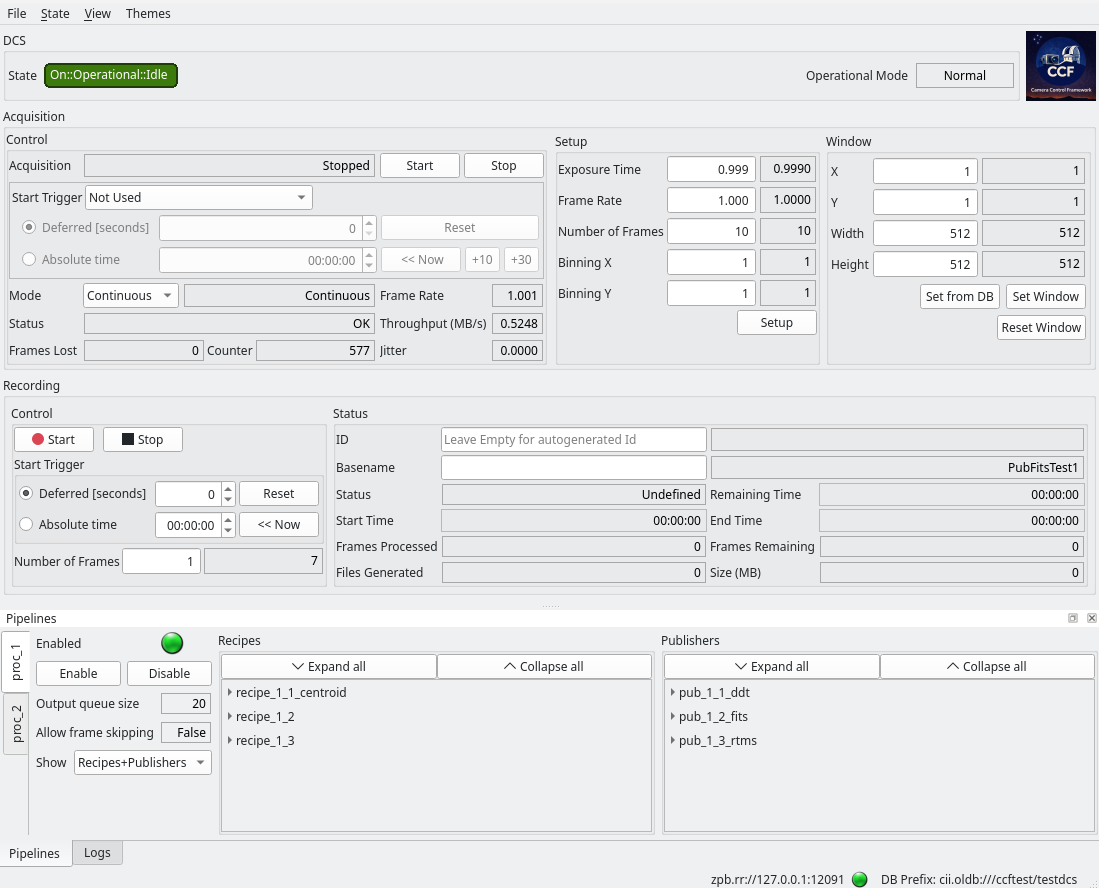
ccfGui panel using CCF ifw-widgets
ccfGui is implemented across two files with a clear separation of concerns:
ccfGui.py– the CLI entry point that parses arguments, discovers the service URI, and launches the applicationccfguimainwindow.py– theCcfGuiMainWindowclass that handles all UI logic, facade management, and dynamic widget composition
The following diagram shows the launch flow between the two files:
CLI arguments
    |
    v
+-----------------+
|  ccfGui.py      |
| (entry point)   |
+-----------------+
    |
    |  --name given?  -->  Consul.resolve(name) --> URI
    |  --uri given?   -->  use directly
    v
Build remote_ddt_dic from paired --publisher-ddt / --remote-ddt-uri
    |
    v
TaurusApplication(app_name="ccfGui", ...)
    |
    v
CcfGuiMainWindow(uri, log_level, remote_ddt_dic)
+-------------------------------+
|  ccfguimainwindow.py           |
| (QMainWindow + Logger)         |
|                                |
|  - WdglibLogger init           |
|  - UI setup (.ui file)         |
|  - ConnectionManager + facades |
|  - _get_db_prefix()            |
|  - OLDB validation             |
|  - Dynamic widget composition  |
|  - Error / connection handlers |
|  - State machine OLDB dpts     |
|  - Status bar setup            |
+-------------------------------+
    |
    v
menu_set_stylesheet(style_resource)
show()
app.exec_()  -->  Qt event loop
The entry point knows nothing about widgets, facades, or OLDB. It only handles launch concerns and delegates all application logic to the main window class.
10.1. ccfGui.py – Application Entry Point
The ccfGui.py file is a lightweight CLI launcher built with
click. Its responsibilities are:
Parse command-line arguments
Resolve the CCF service URI (either direct or via Consul)
Build the remote DDT broker dictionary from paired arguments
Create the
TaurusApplicationinstanceInstantiate
CcfGuiMainWindow, apply the theme, and start the event loop
10.1.1. Command-Line Arguments
The following table summarises the click options accepted by the entry point:
Option |
Description |
Default |
|---|---|---|
|
Registered CCF name in Consul |
|
|
Service URI (e.g., |
|
|
Debugging level |
|
|
Built-in QSS stylesheet resource |
|
|
Remote DDT broker URI (repeatable) |
(none) |
|
DDT publisher name to pair with |
(none) |
10.1.2. Consul Service Discovery
When --uri is not provided (i.e., remains its default value of
"none"), the entry point resolves the service URI from Consul:
if uri == "none":
    cons = consul_utils.ConsulClient()
    uri = cons.get_uri(name)
This allows operators to launch ccfGui by CCF task name rather than hardcoding a URI, supporting deployments where service endpoints vary.
10.1.3. Remote DDT Dictionary
The --remote-ddt-uri and --publisher-ddt options are paired
to build a dictionary mapping publisher names to remote broker URIs:
remote_ddt_dic = {}
for remote_uri, pub_name in zip(remote_ddt_uri, publisher_ddt):
    remote_ddt_dic[pub_name] = remote_uri
This dictionary is passed to CcfGuiMainWindow and forwarded to the
pipeline widgets, which use it to configure publishers that connect to
DDT brokers running on different machines.
10.1.4. Application Launch
Finally, the entry point creates the Qt application, instantiates the main window, applies the theme, and enters the event loop:
app = TaurusApplication(
    app_name="ccfGui",
    app_version="1.0.0",
    org_name="ESO",
    org_domain="eso.org"
)

window = CcfGuiMainWindow(uri, log_level, remote_ddt_dic)
window.menu_set_stylesheet(style_resource)
window.setWindowTitle("CCF GUI")
window.show()
sys.exit(app.exec_())
All of the substance of the application – facade management, widget
creation, error handling – lives in CcfGuiMainWindow.
10.2. CcfGuiMainWindow – Main Window
The CcfGuiMainWindow class inherits from QMainWindow
and Logger. It owns all communication facades, manages
connections, composes widgets dynamically, and provides global error
handling and connection monitoring.
10.2.1. Initialization Sequence
The __init__ method follows a strict sequence:
Base class initialization –
QMainWindowandLoggerLogging setup –
WdglibLogger.init()loads the logging configuration resourceUI setup – the Qt Designer
.uifile is loaded viaUi_CcfGuiMainWindow.setupUi()Facade creation –
StdCmds,DcsCmds, andRecCmdsfacades are obtained from the singletonConnectionManagerOLDB prefix query –
_get_db_prefix()retrieves the OLDB path from the running CCFOLDB structure validation – verifies that
sm,status,properties, andrecordingexist under the prefixCamera and pipeline discovery – queries OLDB for available cameras and pipelines
Dynamic widget composition – creates state, acquisition, setup, recording, and pipeline widgets, adding them to layouts
Post-init GUI setup –
_init_gui()connects menu actions and facade signalsOLDB datapoint setup –
_state_dp_setup()creates datapoints for state machine readsStatus bar setup –
_init_gui_statusbar()adds connection LED and labels
def __init__(self, uri, log_level, remote_ddt_dic) -> None:
    QMainWindow.__init__(self)
    WdglibLogger.init("config/ifw/ccf/gui/ccfGui_logging.json")
    Logger.__init__(self, qApp.applicationName())
    self.setLogLevel(getattr(taurus, log_level.title()))

    self.ui = Ui_CcfGuiMainWindow()
    self.ui.setupUi(self)

    self._base_uri = uri.rstrip('/')

    self.connection_manager = ConnectionManager()
    self.connection_manager.auto_connect = True

    self.std_cmds_facade = self.connection_manager.get_stdcmds(
        f"{self._base_uri}/StdCmds"
    )
    self.dcs_cmds_facade = self.connection_manager.get_dcscmds(
        f"{self._base_uri}/DcsCmds"
    )
    self.rec_cmds_facade = self.connection_manager.get_reccmds(
        f"{self._base_uri}/RecCmds"
    )

    if not self._get_db_prefix():
        sys.exit(1)
    # ... validate OLDB structure, discover cameras/pipelines ...
    # ... create widgets dynamically ...
    self._init_gui()
    self._state_dp_setup()
    self._init_gui_statusbar()
The .ui file defines the static skeleton of the window (menu bar,
dock widgets, placeholder layouts). Widgets are added programmatically
into those layouts at runtime, making the panel adaptable to any CCF
configuration.
10.2.2. Determining the OLDB Prefix
At startup, the main window makes a synchronous MAL call to the DCS IF to retrieve the OLDB prefix:
from ModDcsif.Dcsif.DcsCmds import DcsCmdsSync
import elt.pymal as mal

def _get_db_prefix(self) -> bool:
    ciiFactory = mal.CiiFactory.getInstance()
    qos = mal.rr.qos.ReplyTime(timedelta(seconds=3))

    zpbmal = mal.loadMal("zpb", {})
    ciiFactory.registerMal("zpb.rr", zpbmal)

    with ciiFactory.getClient(
        f"{self._base_uri}/DcsCmds", DcsCmdsSync, qos, {}
    ) as client:
        try:
            self._dcs_db_prefix = client.GetConfig(
                "sys::oldb_prefix"
            ).split("=")[1].strip().lower()
            return True
        except Exception:
            return False
The connection used for this call is discarded after the prefix is retrieved. All subsequent communication goes through the library facades, which manage their own persistent connections.
After retrieving the prefix, the main window validates that the OLDB structure matches what it expects for a CCF:
dcs_childrens = get_children_from_ui_path(self._dcs_db_prefix)
if not (
    "sm" in dcs_childrens
    and "status" in dcs_childrens
    and "properties" in dcs_childrens
    and "recording" in dcs_childrens
):
    self.error("DCS db-prefix does not have a CCF camera structure")
    sys.exit(1)
10.2.3. Dynamic Widget Composition
The number of cameras and pipelines is not known at compile time.
CcfGuiMainWindow queries OLDB to discover them:
cameras_path = f"{self._dcs_db_prefix}/status/acquisition"
cameras_list = get_children_from_ui_path(cameras_path)

pipelines_path = f"{self._dcs_db_prefix}/status/pipelines"
pipelines_list = get_children_from_ui_path(pipelines_path)
State, acquisition, setup, and recording widgets are created once:
self.ui.ccfStateWidget = CcfStateWidget(
    self, self._base_uri, self._dcs_db_prefix
)
self.ui.dynStdHorizontalLayout.addWidget(self.ui.ccfStateWidget)

self.ui.ccfAcquisitionWidget = CcfAcquisitionWidget(
    self, self._base_uri, self._dcs_db_prefix, cameras_list[0],
)
self.ui.dynDcsHorizontalLayout.addWidget(self.ui.ccfAcquisitionWidget)

self.ui.ccfSetupWidget = CcfSetupWidget(
    self, self._base_uri, self._dcs_db_prefix,
)
self.ui.dynDcsHorizontalLayout.addWidget(self.ui.ccfSetupWidget)

self.ui.ccfRecordingWidget = CcfRecordingWidget(
    self, self._base_uri, self._dcs_db_prefix, cameras_list[0],
)
self.ui.dynRecHorizontalLayout.addWidget(self.ui.ccfRecordingWidget)
Pipeline widgets are created in a loop, one per tab:
for pipeline in pipelines_list:
    ccfPipelineWidget = CcfPipelineWidget(
        self, self._base_uri, self._dcs_db_prefix,
        pipeline, remote_ddt_dic,
    )
    self.ui.pipelinesTabWidget.addTab(ccfPipelineWidget, pipeline)
The pipeline and log dock widgets are tabified so they share the same dock area:
self.tabifyDockWidget(self.ui.pipelineDockWidget, self.ui.logDockWidget)
This means the panel adapts to whatever CCF configuration is running.
Note
Each pipeline widget internally discovers its own recipes and
publishers from OLDB and creates sub-widgets accordingly, using the
adapter type read via get_datapoint_value() to select the
correct widget class.
10.2.5. Global Error Handling
Error signals from all facades are connected to a single error handler
that shows a modal ErrorDialog:
self.std_cmds_facade.command_error.connect(self._error_slot)
self.dcs_cmds_facade.command_error.connect(self._error_slot)
self.rec_cmds_facade.command_error.connect(self._error_slot)

@Slot(tuple)
def _error_slot(self, exception_err):
    dlg = ErrorDialog(
        f"{exception_err[0]} {exception_err[1].getDesc()}",
        f"{exception_err[0]}\n{exception_err[1]}\n{exception_err[2]}",
    )
    dlg.exec_()
This pattern provides immediate operator feedback: any MAL command failure pops up a dialog with a human-readable summary and expandable traceback.
10.2.6. Connection Monitoring
Connection state from all facades is monitored centrally. A status bar LED shows green when all connections are up, yellow when some are connected, and red when all are down:
self.std_cmds_facade.connectionChanged.connect(
    self.on_cmds_connection_changed
)
self.dcs_cmds_facade.connectionChanged.connect(
    self.on_cmds_connection_changed
)
self.rec_cmds_facade.connectionChanged.connect(
    self.on_cmds_connection_changed
)

@Slot(bool)
def on_cmds_connection_changed(self, state):
    self._update_connection()

def _update_connection(self):
    connections = self.connection_manager.get_all_connections()
    conn_states = [conn.is_connected() for conn in connections.values()]

    led_color = "red"
    if all(conn_states):
        led_color = "green"
    elif any(conn_states):
        led_color = "yellow"

    self.ui.connectionLed.setLedColor(led_color)
    self.ui.connectionLed.setToolTip(str(self.connection_manager))
The status bar also displays the base URI and the OLDB prefix:
self.ui.statusbar.addPermanentWidget(self.ui.connectionLabel)
self.ui.statusbar.addPermanentWidget(self.ui.connectionLed)
self.ui.statusbar.addPermanentWidget(self.ui.dbLabel)
Individual widgets also handle connection state internally to enable/disable themselves, so both the status bar and the widgets provide visual feedback.
10.2.7. State Machine Awareness
The main window handles state machine transitions through menu actions rather than delegating them to individual widgets. This is because transitions like Init->Enable require orchestration across the entire application.
10.2.7.1. OLDB Datapoint Setup
State and substate are read synchronously via OLDB datapoints, set up
in _state_dp_setup():
self._oldb_client = elt.oldb.CiiOldbFactory.get_instance()
self.state_dp_uri = elt.config.Uri(
    f"{self._dcs_db_prefix}/sm/status/state"
)
self.substate_dp_uri = elt.config.Uri(
    f"{self._dcs_db_prefix}/sm/status/substate"
)
self.state_dp = self._oldb_client.get_data_point(self.state_dp_uri)
self.substate_dp = self._oldb_client.get_data_point(self.substate_dp_uri)
These datapoints are used by the Enable menu action to check the current state before deciding which command to send.
10.2.7.2. Enable with State Check
The Enable menu action checks whether the system is in
NotOperational::NotReady. If so, it calls Init first and
auto-enables once Init succeeds:
@Slot()
def _on_actionEnable_triggered(self):
    state = self.state_dp.read_value().get_value()
    substate = self.substate_dp.read_value().get_value()
    if state == "NotOperational" and substate == "NotReady":
        self.std_cmds_facade.init(result_slot=self._auto_enable_on_init)
    else:
        self.std_cmds_facade.enable()

@Slot(str)
def _auto_enable_on_init(self, reply):
    if reply == "OK":
        QTimer.singleShot(50, self.std_cmds_facade.enable)
The QTimer.singleShot ensures the Enable call is posted after the
Init result has been fully processed, avoiding race conditions.
10.2.7.3. Other State Machine Commands
The remaining menu actions delegate directly to the facade:
@Slot()
def _on_actionInit_triggered(self):
    self.std_cmds_facade.init()

@Slot()
def _on_actionDisable_triggered(self):
    self.std_cmds_facade.disable()

@Slot()
def _on_actionReset_triggered(self):
    self.std_cmds_facade.reset()

@Slot()
def _on_actionRecover_triggered(self):
    self.dcs_cmds_facade.recover()
The Recover action is disabled by default in _init_gui() and intended
for future use.
10.2.8. Theming and Style Switching
The application exposes four style themes in the menu. Switching themes is purely a UI-level operation that does not require widget recreation:
@Slot()
def _on_actionCombinear_triggered(self) -> None:
    self.menu_set_stylesheet("Combinear")

@Slot()
def _on_actionDefault_triggered(self) -> None:
    self.menu_set_stylesheet("Default")
The menu_set_stylesheet() method loads the QSS file using
find_file(), applies it globally via qApp.setStyleSheet(), and
handles theme-specific styling for the CiiLogsWidget:
def menu_set_stylesheet(self, style_resource: str) -> None:
    style = find_file(
        f"config/ifw/wdglib/styles/{style_resource}/{style_resource}.qss"
    )
    with open(style, "r") as fh:
        qApp.setStyleSheet(fh.read())
        QIcon.setThemeName("breeze")

        if style_resource == "Combinear":
            self.ui.ciiLogsWidget.setStyleSheet(
                "alternate-background-color: #3a3a3a; background-color: #000;"
            )
        # ... other themes ...
        else:
            self.ui.ciiLogsWidget.setStyleSheet(self.log_style)
See the Styles chapter for details on how QSS themes are structured and applied.
10.3. Summary of Key Patterns
The following table summarizes the core design decisions in ccfGui:
Decision |
Rationale |
|---|---|
Two-file entry point / main window split |
Separates CLI launch concerns from application logic |
Consul URI resolution |
Operators launch by task name, not hardcoded URI |
Remote DDT broker pairing |
Pipeline publishers can connect to brokers on different machines |
Query dcs_db_prefix at startup |
Supports any CCF instance, any OLDB location |
Discover cameras/pipelines from OLDB |
Panels adapt to runtime configuration |
Singleton ConnectionManager |
One connection per endpoint, shared state |
Global ErrorDialog for facade errors |
Immediate operator feedback on command failures |
Status bar LED for connection state |
At-a-glance visibility of MAL connection health |
remove_bgrole() on all widgets |
QSS theme overrides Taurus default colors |
State-aware Init before Enable |
Handles NotOperational::NotReady transitions smoothly |
Sync OLDB reads for state checks |
State queries are occasional; synchronous reads are acceptable |