Sequencer GUI
The sequencer GUI allows to load and execute Python sequences and OBs (JSON format still TBD).
Note
Do not rely on standard output to debug/check sequencer scripts.
Warning
Since the server is the responsible of executing sequencer scripts, therefore standard output is swallowed by the server.
Sequencer server
The Sequencer GUI requires REDIS and the sequencer server to be up in order to work.
The sequencer server is started as:
$ seq server
Usage, seq server [options]:
Starts sequencer server

Options:
   --address TEXT    [HOST:]PORT
   --redis TEXT      [HOST:]PORT
   --log-level TEXT
   --help            Show this message and exit.
The theory is that one can have a sequencer server running on a different host than the GUI.
The server address is given as [HOST:]PORT, the same syntax is used to connect to the REDIS server.
Using the Sequencer GUI
- Starting the sequencer GUI is done as follows::
$ seq gui
One can pass the –address [HOST:]PORT to specify the seq server address. The –redis [HOST:]PORT allows to specify the redis server address.
The GUI opens the following window.
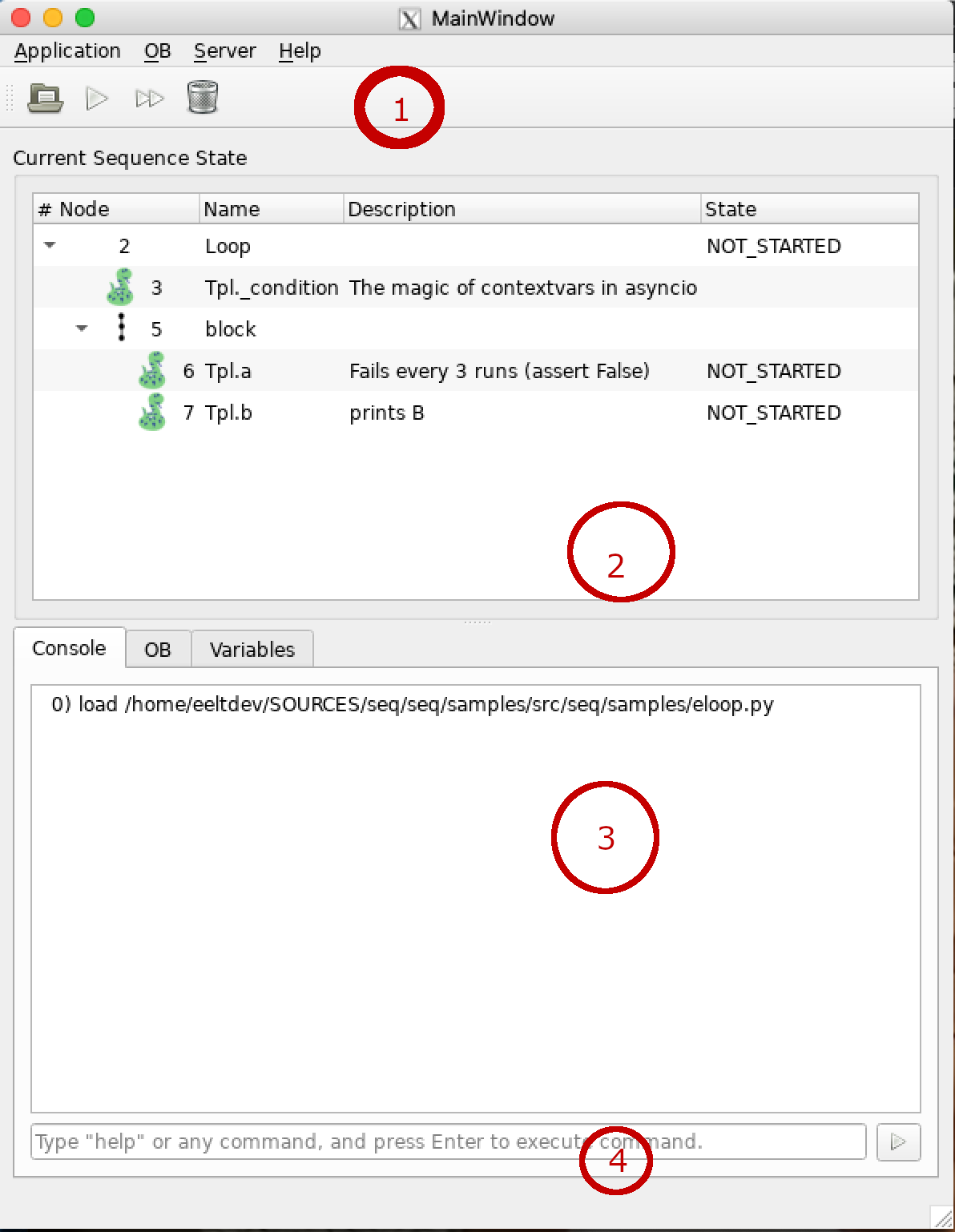
The GUI is divided in four parts.
The toolbar, displays four buttons, which functions as: Load, Run, Continue and Reset.
The Sequence tree. For each sequence step, displays in four columns displays: serial number, name, documentation (if any), and the state.
Console. The GUI communicates with a sequencer shell this window shows the interaction with the shell.
User’s input. In this entry the user can type commands directed towards the sequencer shell.
The Toolbar
- The GUI toolbar sports fout buttons.
- Append OB
Loads or Appends an OB. Multiple scripts can be loaded, until the Run button is pressed.
- Run
Executes the scripts loaded.
- Continue
A script(s) execution can be aborted or paused. The execution resumes with the Continue button.
- Reset
Cleans the execution tree and restarts the execution engine.
The toolbar commands can also be given directly on the input widget.
The Tree Window
The tree window shows the loaded scripts in a tree widget. The script and its components can be expanded or collapsed. Each column shows a single node with its serial number, name, doc string (from python) and its state.
Note
The mouse secondary button displays a context menu that allows to Pause/UnPause or Skip/UnSkip the selected node.
Along the node number an icon is displayed, which depends on the node type to help identify their intent.
Marks action nodes (actual python code).
Marks Sequence nodes.
Marks Parallel nodes.
Marks Loop nodes.
The state column displays not only the node state but also if the node has been marked to pause (RT.PAUSE) or to skip its execution (RT.SKIP). In this context RT stands for runtime flags. Node states can be one of the following:
- NOT_STARTED
Node has not been started yet.
- SCHEDULED
Script execution started. The node will be executed at some point.
- RUNNING
Node is currently executing.
- FINISHED
Node has completed its execution. A finished node can be in any of the following substates:
- SKIP
Node is considered finish because it was puporsedly skipped (RT.SKIP runtime flag).
- ERROR
The node raised a runtime exception and has finished with error.
- CANCELLED
Node execution has been cancelled. This happens when some other node, down the tree has finished with error.
- PAUSED
The execution of the tree is paused in the node mark with RT.PAUSE flag. A paused script can be resumed by removing the RT.PAUSE flag from the node. This is done with the right mouse button menu and select Pause/UnPause node.
Error Handling
When a script aborts with an error (some exception was raised) a dialog window appears and displays the python traceback.
The dialog presents three buttons that allows to:
Retry the failed node.
Ignore the error and resume script execution.
Discard the error window and reflect on what just happened.
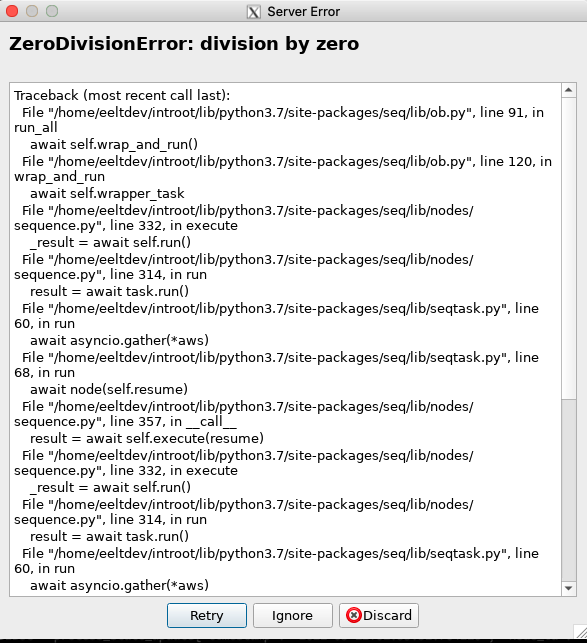
In addition, an aborted script can be continued (skipping the failed node) by means of the continue button in the toolbar.
One can retry the failed node typing the retry command and using the node serial number.
The Console Window
The console window just shows the output of the commands sent to the sequencer server.
The input area
Here, the user can type commands for the shell (controlled by the sequencer server ) to be executed.