[Top] [Prev] [Next] [Bottom]
1.2 Getting Data with StarView
StarView is available in an X-Windows based version and a terminal version for basic terminals, such as a VT100. This section leads you through a simple example of an X-Windows StarView session, providing additional information about how to run the terminal version where the two versions differ. The terminal version is only available remotely and is mainly useful if your electronic connection to STScI is slow. If you need to access StarView remotely, consult "Running StarView via Remote Access" on page 1-18 before proceeding.
Start the X-Windows version of StarView by typing:
% xstarview
Some introductory messages will then appear on your screen. To see more of the text, press  . To quit, press
  .
.
The StarView session then begins, displaying messages telling you what is happening (e.g., data dictionaries being loaded). The startup process may take a minute or two to complete.
1.2.1 Welcome Screen
The StarView <Welcome> screen (Figure 1.1) appears first. If there is any urgent news (e.g., a message about possible system downtime), it will appear at the top of the welcome text.
Figure 1.1: Welcome Screen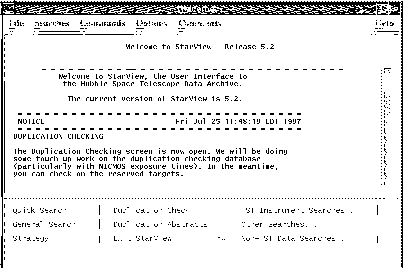
You can scroll through the text and read any additional information below the display area using the scroll bar on the X-Windows version of StarView. On the terminal version (for VT100 or other basic terminals), use the arrow keys or page up by pressing  -
- and page down by pressing
  -
- .
.
1.2.2 Command Usage and Screen Interaction
In the X-windows version of StarView:
1.2.3 Searching the Catalog
To search the catalog:
- Choose a search screen.
- Specify your search criteria, such as a range of sky coordinates (and a release date before today's date if you want public data.).
- Click on the [Begin Search] button to start the search.
- Click on the [Scan Forward] button to complete the search.
In this example we use the <Quick Search> screen to search the HST catalog.
 The <Quick Search> screen is useful for most basic searches of the HST catalog.
An extensive set of more detailed search screens is also available. To choose one
of these, click on [ Other Searches ] or pull down the | Searches | menu. Consult
the HST Archive Manual for more details.
The <Quick Search> screen is useful for most basic searches of the HST catalog.
An extensive set of more detailed search screens is also available. To choose one
of these, click on [ Other Searches ] or pull down the | Searches | menu. Consult
the HST Archive Manual for more details.
The <Quick Search> Screen
Choose the <Quick Search> screen by clicking the [Quick Search] button. The <Quick Search> screen is shown in Figure 1.2. We will use this screen to request all of the public WFPC2 data for the galaxy M87.
Figure 1.2: Quick Search Screen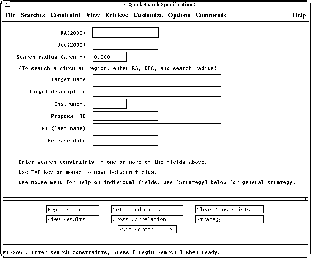
Specifying Search Criteria
There are various ways to search for observations of a particular target in the catalog. The easiest way is to enter the name (e.g., "M87") in the target field. Because observers do not necessarily use the same convention to name sources, this strategy might not return all observations of a given source. The best way to ensure that you retrieve all observations of a given stationary target is to search for observations within a given (radial) distance of your source's position by entering constraints in the "RA", "Dec", and "Search radius" fields on the <Quick Search> screen.
 If you do not know the RA and Dec of your target, you can run either the
-SIMBAD or NED target name resolver from within StarView. Each resolver automatically determines the target's position using a network connection to either the
SIMBAD database in Europe or the NASA Extragalactic Database (NED) in California. It then populates the RA and Dec fields on the search screen with this
information. Click on the [Get Coordinates] button to use the SIMBAD resolver;
to use NED, pull down the |Options| menu, select User Defaults, and change the
"Coordinates lookup server" field to NED.
If you do not know the RA and Dec of your target, you can run either the
-SIMBAD or NED target name resolver from within StarView. Each resolver automatically determines the target's position using a network connection to either the
SIMBAD database in Europe or the NASA Extragalactic Database (NED) in California. It then populates the RA and Dec fields on the search screen with this
information. Click on the [Get Coordinates] button to use the SIMBAD resolver;
to use NED, pull down the |Options| menu, select User Defaults, and change the
"Coordinates lookup server" field to NED.
Since we want all observations of M87 (even when the target name is something else), we will use "Get Coordinates" to fill in the RA and Dec. Click on the [Get Coordinates] button, enter "M87" as the name, and the RA and Dec fields will be automatically filled.
In this case, we want WFPC2 observations, so move to the "Instrument" field. The valid HST instruments are:
 To get help on the valid ranges for any field, use the field help. In xstarview,
move the cursor to the field and press the right mouse button (or press the
To get help on the valid ranges for any field, use the field help. In xstarview,
move the cursor to the field and press the right mouse button (or press the  button, often located in the bottom left corner of your keyboard).
Enter WFPC2 in the instrument field. (To find observations from more than one instrument, use a comma-separated list; e.g., WFPC2,WFPC,FOC.)
We want public data, so now specify that we want data released prior to today's date. For example, move to the "Release date" field and enter <Sep 1 1997 for any datasets that were released before September 1, 1997. Figure 1.3 shows how the <Quick Search> screen looks at this point.
 Don't use commas in a date field. StarView will interpret the comma as a list
-operator.
Don't use commas in a date field. StarView will interpret the comma as a list
-operator.
Figure 1.3: Quick Search Screen With Constraints Entered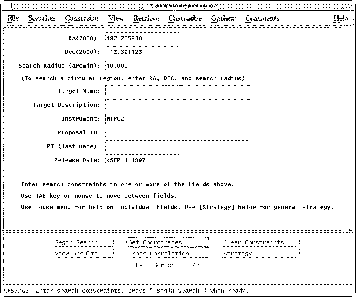
 Use the [Strategy] button to get help using any StarView screen, or the pull down
|Help| in the menu bar to see all the available StarView help.
Use the [Strategy] button to get help using any StarView screen, or the pull down
|Help| in the menu bar to see all the available StarView help.
Starting the Search
Click on the [Begin Search] button to search the catalog for the observations satisfying your search criteria. If none are found, a message will appear at the bottom of the screen, and you will need to enter different search constraints. If at least one observation is found, the screen will change to the <Quick Search Results> screen.
The <Quick Search Results> screen (Figure 1.4) shows the results of your catalog search. The first record that matches your search criteria will be displayed.
Figure 1.4: Quick Search Results Screen With Record Display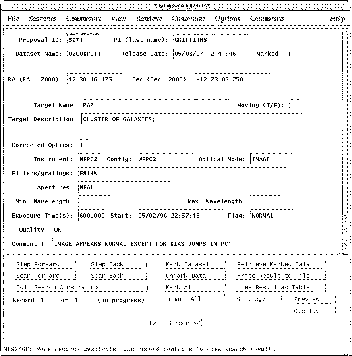
Viewing Subsequent Found Observations
If you want to scan the full list of your search results:
Figure 1.5: Quick Search Results Displayed on the Table Format Screen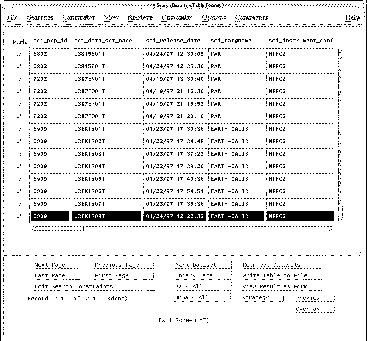
 Use the [Preview] button to get a quick look at the data. Previewing can help you
decide whether or not to retrieve a dataset. The Preview function displays compressed HST images (not suitable for science analysis), as well as FOS or GHRS
spectra. Only public data are available for preview. Previews are not available in
the terminal -version.
Use the [Preview] button to get a quick look at the data. Previewing can help you
decide whether or not to retrieve a dataset. The Preview function displays compressed HST images (not suitable for science analysis), as well as FOS or GHRS
spectra. Only public data are available for preview. Previews are not available in
the terminal -version.
1.2.4 Retrieving Datasets From the Archive
We now want to retrieve some of the data that we have identified in the catalog. The steps in this process are:
- Mark the observations that you want to retrieve; you can mark them either individually or as a group.
- Display and review the list of datasets to be retrieved.
- Specify the file formats and media to be used in the retrieval process.
- Submit the request.
- Check the request status, if desired.
Marking Observations for Retrieval
To mark for retrieval the dataset displayed on the screen, click the [Mark Dataset] button. A message confirming this action will appear at the bottom of the screen. Also, the "Marked" field, in the upper right corner of the screen, will display "T" (true) indicating that the dataset has been marked for retrieval.
You can mark datasets for retrieval in either the table-row format display screen, in which case the highlighted record is marked, or on the <Quick Search Results> screen with the record displayed.
If you want to mark for retrieval all of the records matching your search criteria, click on the [Mark All] button. This volume of data could be very large, as it would be for the M87 search request described here. Alternatively, step through your search results records by clicking on the [Step Forward] button and click on the [Mark Dataset] button for the specific observations you desire. In this example, we mark only a few datasets for retrieval.
Reviewing the Retrieval Request
Once you have marked records for retrieval, you begin the retrieval process by displaying and reviewing the list of datasets to be retrieved:
- Click on the [Retrieve Marked Data] button to exit the <Quick Search Results> screen and to begin the retrieval process by -bringing up the <Archive Retrieval> screen.
- Review the list of marked datasets.
The <Archive Retrieval> screen lists all of the datasets that you have marked for retrieval. In this case, you would see something like
Figure 1.6: The Archive Retrieval Screen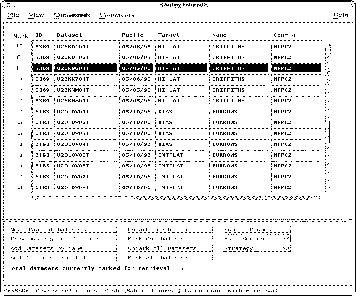
If you have marked numerous datasets, you may need to click on the [Next Page of Datasets] button to see additional screens of marked records. The total number of datasets that you have marked for retrieval is shown near the bottom of the screen.
If you wish to include additional datasets in your request, choose the [Add Datasets by Name] command from the <Archive Retrieval> screen (or use [Add Datasets from File] if you have a list of dataset names). Then enter the rootname (no suffix) of the calibration reference file(s) or science file(s) you wish to retrieve. (See Appendix B for more on rootnames and suffixes.)
Specifying Formats and Media
To continue with the data retrieval process,:
- Click the [Submit Request] button.
- Specify the files that you want to retrieve.
- Specify the type of medium (file transfer method) that you want.
When you click the [Submit Request] button, the <Retrieval Request - File Options> screen is displayed (Figure 1.7).
Figure 1.7: Retrieval Request - File Options Screen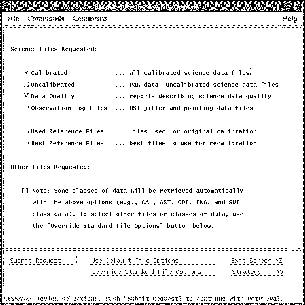
The <Retrieval Request - File Options> screen indicates the kinds of files that will be retrieved. In this case the final calibrated science data files and the data quality report files will be retrieved. Click the [Submit Request] button to continue with the retrieval process.
 If you plan to recalibrate your data, you can also request the uncalibrated data and
the appropriate calibration reference files at this time. STIS users who need target
acquisition data (ACQ or ACQ/PEAK images) should request uncalibrated data,
because these images are not calibrated. NICMOS users who wish to obtain individual exposures that go into processed mosaics will also have to request the
uncalibrated data. NICMOS users in particular may need to take care at this point
not to exceed the ST-DADS dataset limit. This limit is currently set at 600
datasets, but be aware that multiple datasets can correspond to a single observation.
If you plan to recalibrate your data, you can also request the uncalibrated data and
the appropriate calibration reference files at this time. STIS users who need target
acquisition data (ACQ or ACQ/PEAK images) should request uncalibrated data,
because these images are not calibrated. NICMOS users who wish to obtain individual exposures that go into processed mosaics will also have to request the
uncalibrated data. NICMOS users in particular may need to take care at this point
not to exceed the ST-DADS dataset limit. This limit is currently set at 600
datasets, but be aware that multiple datasets can correspond to a single observation.
The <Retrieval Request - Media Options> screen is then displayed (Figure 1.8). You will need to enter your Archive user name and password, pressing  after each entry. You can then choose how you would like to receive you data:
Figure 1.8: Retrieval -Request- Media Options Screen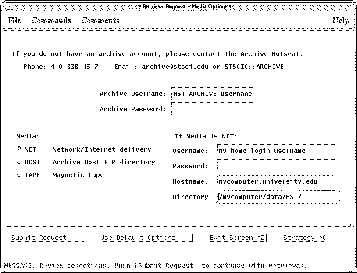
 The TAPE option is especially useful for large data requests.
Submit the Request
Click on the [Submit Request] button to begin the submission process. StarView will validate your Archive account information and send your retrieval request to the Archive system.
 At this point xstarview may want to interact with you using a special xterm
-window that it will initiate. Respond to any- x-starview requests appearing in
that window.
At this point xstarview may want to interact with you using a special xterm
-window that it will initiate. Respond to any- x-starview requests appearing in
that window.
The list of datasets you have requested will be saved in a file named after the date and time of the request, with an extension of .req. StarView will display the name of this file in the xterm window. Figure 1.9 shows how a StarView screen might look at this stage.
Figure 1.9: Retrieval System -Messages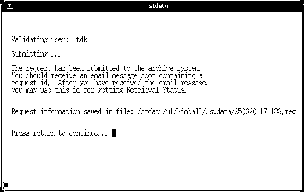 .
.
Press  to exit from the retrieval process and to return to the StarView screen from which you initiated the retrieval request.
Shortly after your request is submitted, you will receive an E-mail message telling you that your request was accepted and queued by the Archive system and giving you the request ID.
 You can use the request ID later to check the status of your request and also to
locate your data on the Archive host's staging disk after it has been retrieved.
You can use the request ID later to check the status of your request and also to
locate your data on the Archive host's staging disk after it has been retrieved.
Checking Request Status
To check the status of your retrieval request:
- Click on the [Retrieval Status] button from within the | Retrieve | menu on most StarView search screens, or click on the | Commands | menu from the <Welcome> screen.
- You will be asked to enter your request ID, which will be E-mailed to you shortly after you submit your request. Type the request ID.
- Press
 to continue with your StarView session. Figure 1.10 shows a sample retrieval status screen.
Figure 1.10: Sample Retrieval Status Screen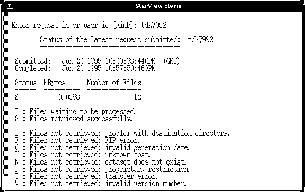
1.2.5 Exiting StarView
You can now either continue working in StarView, or you can exit. Press  -
- to exit StarView. A dialog box will appear asking you to confirm that you really want to exit. Click [OK] to exit.
1.2.6 Transferring Your Data with FTP
If you have chosen the HOST option, you will have to transfer your data yourself from archive.stsci.edu to your own disk via anonymous FTP. After your data have been retrieved from the Archive and placed in your archive subdirectory (e.g., SMITH1234 on archive.stsci.edu, see page 1-15), you will receive a second E-mail notification. You can then transfer the data to your home site as follows:
Figure 1.11: Retrieving Files Using FTP
% ftp archive.stsci.edu

Connected to archive.stsci.edu.

220 archive.stsci.edu FTP server (Version 5.86) ready.

Name (archive.stsci.edu): anonymous

Password: Type your e-mail address

.

<message of the day displayed here>

.

ftp> cd tdk7992

250 CWD command successful.

ftp> binary

200 Type set to I.

ftp> prompt

Interactive mode off.

ftp> mget u*.fit

200 PORT command successful.

50 Opening BINARY mode data connection for u2900101t_c0f.fit

226 Transfer complete

.

.

ftp> bye

221 Goodbye.
 Don't forget to set the FTP transfer type to "binary" before transferring the files.
1.2.7 Running StarView via Remote Access
If you must use telnet to access the Archive, here's how to do so.
% telnet archive.stsci.edu

Connected to archive.stsci.edu.

Escape character is `^]`.

Login: guest

Password: archive
The X-Windows version will ask for your X display host name. You should respond with the name of your home workstation. You will then be instructed to add archive to your computer's xhost file by typing the following line in another window and pressing  to continue:
% xhost +archive.stsci.edu
You can now run the X-windows version of StarView remotely by typing
% xstarview
If you want to reduce networking overhead, you can use the terminal version instead by typing:
% starview
The terminal version of StarView will ask you to confirm your terminal setup. For example:
xterm 24 x 80 [Y]:
If this setup is correct, press  to continue. If not, then answer "no" by pressing
  followed by
  . If you answer "no", StarView will then ask some questions about your terminal type, number of lines, and number of columns. Type a question mark (
 ) to get help about your options.
Remember, if you have any problems or questions, contact the Archive hotseat at archive@stsci.edu.
[Top] [Prev] [Next] [Bottom]
stevens@stsci.edu
Copyright © 1997, Association of Universities for Research in Astronomy. All rights
reserved.
Last updated: 11/13/97 16:07:33
 -
- to cycle through the three screen areas (menu, work area, and command box).
 to invoke the highlighted function.
 key while simultaneously pressing the
  key. Other commands show accelerators such as "E+n", which means that you would press the
  (escape) key followed by
  .
.