


Scripts help
The cosmetic test :
script: getCosmetic.pgm
This script get a panel of images taken at different wavelengh. The parameters about the number of images and the wavelength have to be given in the script.
     "

     REM Standard values

     BandWidth=5

     NbImage=3

     WaveLength[1]=350

     WaveLength[2]=600

     WaveLength[3]=900 "
Before to launch the script, the monochromator must be open in Prism.
At the beginning of the script, a dialog box appears:
"Clock mode :": give the clock mode to acquire the images

"Fast clock mode :": give here a fast clock mode to find the good    exposure time

"Save all images :": If you want to save the images, select it. Also,    for each image, to jpeg images will be saved(a small and a big one). This jpeg    images can directly be used for the standard web page.

"Window the images:": Click here to window the final images (for example    to remove the prescan).If you have selected the option "Save all images :",    the script will ask you the directory where to save this images
The convertion factor/readout noise test :
script: testConvertFactorNoise.pgm
This script calculate the convert factor and the readout noise of a specific clock mode. To do this, it takes two flats and two darks.
At the beginning of the script, a dialog box appears:
"Clock mode :": give the clock mode to acquire the images

"Nb window X:": give the number of subwindows to get the      calculation error (see the convertion factor calculation in PRISM)

"Nb window Y:":

"backup everything in a directory": backup all the images      in a directory. If you select this option, the script will ask you the directory.

"Include the reasults in a HTML page :": if you want to include the      reasults in a HTML page, select this option. If you do so, the script will      ask you the HTML page. This one must contain the key word < !Conv.factor      noise> . The reasults will be added after this keyword.
After having take one image, the script will ask you to select a window in the image in which to calculate the convert factor and the noise.
The CTE calculation :
script: TestCTE.pgm
This script calculate the CTE of a CCD.
At the beginning of the script, a dialog box appears:
"Clock mode :": give the clock mode to acquire the images


"Last X sensitive pixel :"

     ...................... (read the specific help about the CTE calculation in      Prism)
"Save all the images :" : backup all the images in a directory. If you select this option, the script will ask you the directory.
The QE test:
script: TestQE.pgm
This script calculate the QE and the PRNU of a CCD.
First, you have to give this script the good test bench calibration file. To do so, open the script file and replace the follwing lines :
rem Diode reference file

DiodeRef$="c:\boris\CCD Images (test)\QE\calibrationFile.txt"

rem Window transmission file

WindowT$="c:\boris\CCD Images (test)\QE\WindowTransmission.txt"
To calculate these files, you can use the dedicated "calibrate.pgm" script.
You have also to be shure that the bandwidth value, the max exposure value, the number of current measurement and the bias offset value are ok .
You can see and modify the following lines in the script :
REM Standard values

REM bandwidth

bandWidth=5

REM NbAmmeter measurement

nbAmmeterMeasure=10

REM Max exposure (ms)

maxExposure=40000

REM Approximative mean value of a bias

offset=400
The script calculate the conversion factor, like in the "testConvertFactorNoise.pgm" script.
Also, a dialog box appears :

So you have to give the following parameters :
"Nb window X:": give the number of subwindows to get the calculation error (see the convertion factor calculation in PRISM)
"Nb window Y:":
"Clock mode :" give the clock mode to acquire the images (In general a small image to calculate the QE).To have more informations about this parameters, see the
"Pixel size X :" The pixel size (in micron)
"Pixel size Y :" The pixel size (in micron)
"Distance measurement :" Relative distance of the measurement point
"Distance calibration :" Relative distance of the calibration point
QE calculation in prism.
"Save all images :" backup all the images in a directory. If you select this option, the script will ask you the directory.

"Include the results in a HTML page :" if you want to include the reasults in a HTML page, select this option. If you do so, the script will      ask you the HTML page. This one must contain the key word "< !QE Data>" . The reasults will be added after this keyword. The script will also ask the directory in which to put the jpeg images of the graphs.
After having take one image, the script will ask you to select a window in the
image in which to calculate the convert factor and the noise.
The linearity test
script:AcquireTDI.pgm
This script is not very easy to use. He`s not automatic and try to acquire a ramp by using a kind of TDI mode.
So, after having chose the good clock mode, the script start an exposure with the shutter close and wait few milliseconds. Just when FIERA begins to read the CCD, the script open the shutter.
The result should be like that :
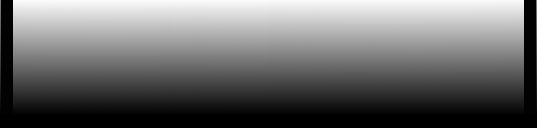
You may have a ramp.
- The value of the ramp must start at the value of the CCD offset. If it is not the case, the script start to open the shutter to late, and you must reduce the delay time.
If the ramp begins to late, you have to increase the delay time.
- The value of the ramp must end by the saturation value (32767 in PRiSM). If the value is to low, you should increase the amount of light or reduce the readout speed. If the value is really to high and the ramp is saturated very early, you should decrase the amount of light or increase the readout speed.
So, when you have a good TDI image, save it and take a flat image with the same configuration.
To have the linearity response call the linearity function in PRiSM.
The test bench calibration
script: calibrate.pgm
To calibrate the test bench, you must open the monochromator, the keythley486 ammeter and the keythley6514 ammeter.
The keythley486 must be plugged on the integrating sphere diode and the keythley6514 on the CCD diode.
You also have to fill up the "calibrationReferrence.txt" file. This file contains the calibration informations of the diode.
Then you can start the script. For each wavelength in the calibrationReferrence.txt, the script will measure the response of the test bench.
Back to the Testbench Software - overview