Internet CFC Monitor Controller
Written by B.Gaillard (bgaillard@eso.org)
The purpose of this device is to control and to monitor remotely a Continuous Flow Cryostat from any PC over the Internet/LAN. So, the user can react quickly to a problem, and make the camera cooling control very secure (from any place in the world...). In the test bench, many problems are due to cooling, because of the lack of liquid nitrogen, or because of the "overcooling" of the output pipe which can froze all the camera and maybe destroy the CCD,...
Now, it becomes possible to track the cooling progress and to create a specific strategy with some algorithms from the PC.
The hardware side:
For this purpose, the device is connected to a local network by a 10MBits ethernet plug, with a dedicated IP address.
So, it must be initialized by being programmed with a specific IP address and a gateway address.
To do so, you must change the following micro-controller SX52 code source : here.
To know more about the Ethernet board, click here.
To detect if the connection is working, it is possible to ping at the dedicated IP address (ICMP protocol), by the following command:
ping #Address
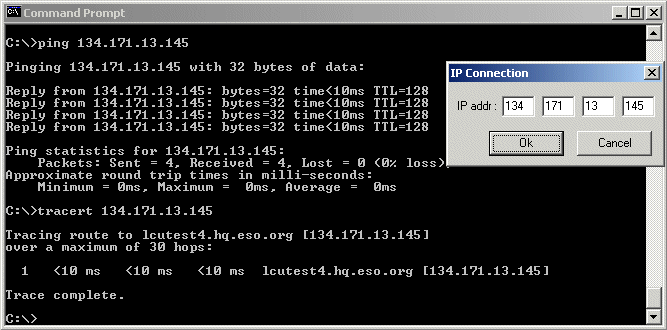
The CFC controller can be ping.
The communication to the CFC controller is made thru a RS485 protocol, at a speed of 9600 speed.
One plug is dedicated to the temperature, and the other one to the vacuum. It is possible to merge this plugs in one, by following the directive in the graphic and make q single RS485 to the ethernet board.
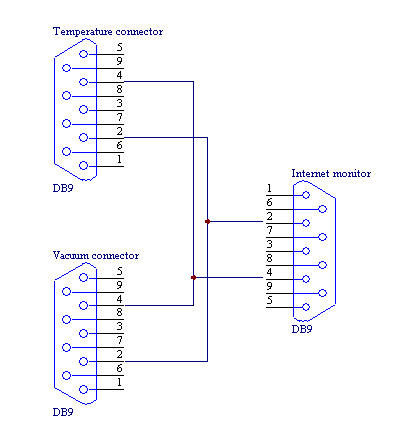
The new CFC controller documentation (Serge Moureau) can be read to know more about the CFC controller.
From software side:
At last, the hardware Internet device is only a translator between Ethernet and RS-485 protocols. A software has been done to communicate to the ethernet to RS485 translator and to the CFC controller.
The software developed by ODT is available under Windows (Win32/2000), here.
This is the main panel :
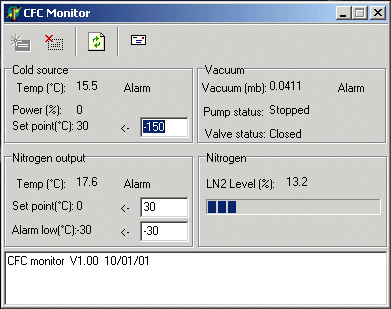
To startup the connection, click to 
It is possible to add an alarm for every critical value, such as the temperature. To do so, click on the command "Alarm" in front of the desired label:
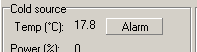
Click to the word "Alarm".
A dialog box appears in which you can setup the alarm values:
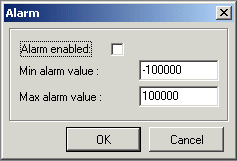
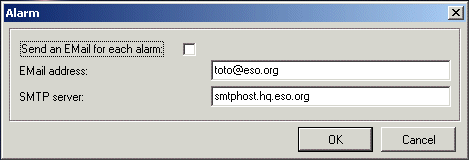
When an alarm is activated, it is possible it to receive a notification thru an EMail. Click to : 
You can fill up your email address and the SMTP server which is used to send email.
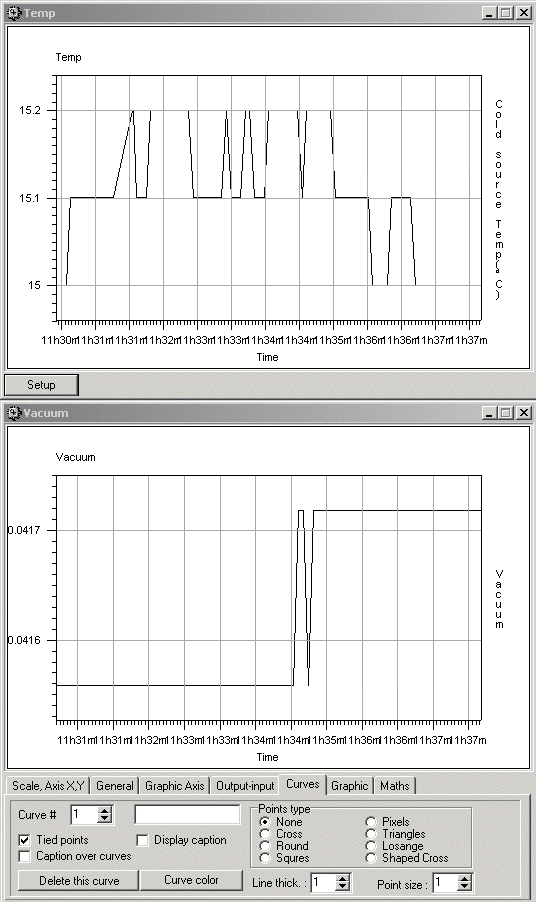
To make a graphic, simply click to the label bound to the value that you want to plot !
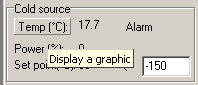
Click on the word "Temp".